Transform Student Assessment with Data-Driven Insights
Create, manage, and analyze assessments with ease. Empower educators with real-time data, automated grading, and actionable reports that improve learning outcomes.
Start Learning Browse Tutorials
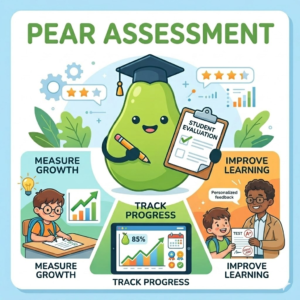
Pear Assessment: The Complete Guide to Smarter, Data-Driven Learning in K–12 Education
Pear assessment has transformed how educators approach student evaluation, blending the simplicity of classroom formatives with the analytical power of district-wide benchmark testing — all inside a single, cloud-based platform.
Whether you are a classroom teacher running daily exit tickets, a district administrator overseeing benchmark cycles across dozens of schools, or a curriculum coordinator building standards-aligned question banks, understanding every facet of this platform is essential in today’s data-driven educational landscape. This in-depth guide examines what the platform is, how it works, who it serves, what its key features accomplish, and how educators and administrators can maximize its potential to close learning gaps and accelerate student achievement.
What Is Pear Assessment?
Pear assessment is a versatile assessment platform that combines the ease of use needed for simple classroom assessments with the customization required to deploy common assessments at scale. As part of the Pear Deck Learning platform, it is the only versatile testing solution that combines the reporting capabilities and customization districts need with the simplified classroom assessments teachers love.
Originally launched under the name Edulastic, the platform rebranded to align with Pear Deck Learning — a broader ecosystem of instructional tools designed to support teachers across every phase of the learning cycle. Pear assessment is a powerful digital platform designed to simplify learning and assessment for teachers, students, and schools. With features like automatic grading, real-time feedback, data analytics, and LMS integrations, it streamlines the evaluation process while promoting continuous student improvement.
The rebranding from Edulastic was not merely cosmetic. It reflected a strategic unification of the platform with companion tools — Pear Deck for interactive presentations, Pear Practice for differentiated skill-building exercises, and Pear Start for lesson planning — creating a cohesive instructional suite. Pear assessment is a technology-enhanced assessment solution for teachers and school and district administrators. It is easy enough for classroom formative assessments, yet sophisticated enough for common interim and benchmark assessments that mirror state tests.
This dual-purpose design is central to what makes it valuable: no other platform on the market has managed to bridge the gap between the informal, spontaneous nature of classroom formatives and the rigorous, standardized demands of district-level testing with equal elegance.
The History: From Edulastic to Pear Assessment
Understanding the evolution of the platform gives important context for the breadth of its current feature set. Edulastic was founded in 2014 with a clear mission: give K–12 teachers a free, standards-aligned tool to create and deliver technology-enhanced assessments digitally. The platform grew rapidly, attracting hundreds of thousands of teachers who were frustrated with paper-based testing and manual grading.
The Edulastic Pear Assessment rebrand reflects a larger goal: making data-driven teaching accessible to every classroom, regardless of school size or budget. Teachers build custom assessments, draw from a library of pre-made questions, and align every item to Common Core or state standards. Auto-grading alone recovers hours each week.
When Pear Deck Learning absorbed Edulastic into its ecosystem, the product matured significantly. The item bank expanded, reporting tools deepened, AI-powered features were introduced, and district-level data capabilities were layered in through a dedicated Data Studio module. Today, the platform serves more than 500,000 teachers globally and is recognized as the leading K–12 assessment platform by independent research surveys.
Who Uses Pear Assessment?
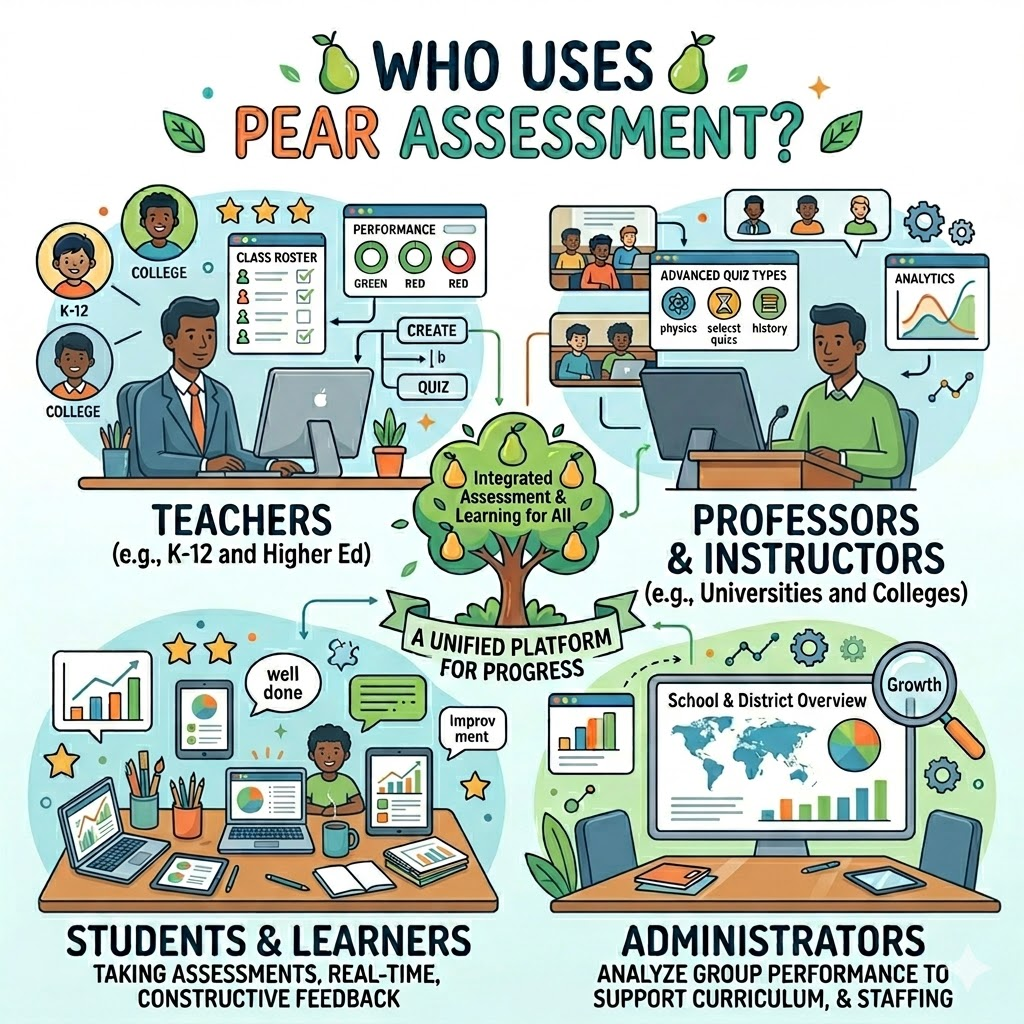
The platform is architected to serve multiple distinct user groups, each with different needs and levels of access.
Classroom Teachers use it as an everyday instructional tool. They create short formative checks — entrance tickets, exit tickets, mid-lesson polls — and deploy them instantly. The live class board gives them real-time visibility into which students are keeping up and which are falling behind, allowing on-the-spot instructional pivots.
School Administrators rely on it to coordinate common assessments across departments or grade levels. They can distribute locked, standardized assessments, review school-wide performance reports, and compare subgroup outcomes across classrooms.
District Administrators use the platform’s enterprise-level Data Studio to consolidate assessment results alongside attendance records, diagnostic data, and state testing results, enabling comprehensive MTSS (Multi-Tiered System of Supports) planning.
Students engage with the platform through a clean, device-agnostic interface that supports Chromebooks, tablets, desktops, and mobile devices. When students can visualize and understand their progress, it empowers them to take charge of their learning journey. Students have started to become owners of their learning.
Core Features Explained in Depth
Technology-Enhanced Question Types
One of the most distinguishing characteristics of pear assessment is the sheer variety and sophistication of its question types. Over 50+ tech-enhanced question types provide strong options for question delivery. This goes far beyond the simple multiple-choice and true/false questions that dominated digital testing in its early years.
Teachers can build assessments using:
- Multiple choice and multi-select — the classic formats, but with multimedia embedding support
- Drag-and-drop — students sort, classify, or sequence concepts interactively
- Graphing questions — students plot points, draw functions, or interpret coordinates
- Essay and extended response — with AI-assisted rubric generation for faster grading
- Hot spot — students click on specific areas of an image to answer questions
- Fill-in-the-blank — both typed and dropdown variants
- Fraction and equation input — with a built-in equation editor for math accuracy
- Video quiz — questions embedded directly on a YouTube video timeline
- Audio response — available in enterprise tiers, allowing students to record spoken answers
The platform provides over 30 interactive question types, including multiple choice, essay, drag-and-drop, image labeling, true/false, and short answer, plus a massive question bank with 80,000+ pre-made questions covering different subjects and standards.
This variety is particularly important because technology-enhanced items (TEIs) mirror the formats students encounter on state standardized tests such as PARCC, Smarter Balanced, STAAR, PSSA, and NC EOG exams. By practicing in the same format they will face on high-stakes assessments, students reduce test-day anxiety and develop familiarity with the interface.
The Item Bank and Pre-Built Assessment Library
Building assessments from scratch is time-consuming, and even experienced teachers can inadvertently introduce bias or misalignment into their questions. The item bank addresses this by providing an expansive, vetted collection of ready-to-use content.
The Pear Assessment Certified item bank includes more than 20,000 standards-aligned questions from popular and reliable open education resources, state-released items, and a team of experts. Beyond the certified collection, teachers can access over 60,000 pre-built assessments in the test library, searchable by subject, grade level, and standard.
The library is organized to support targeted searching. Teachers can filter by subject area, grade band, specific standard code, question type, Depth of Knowledge (DOK) level, and source (state-released, community-shared, or certified). This granularity ensures that every question placed on an assessment is intentional, defensible, and aligned to what students are expected to know.
Pear assessment’s content partners and premium bundles provide educators the option to add a large array of high-quality, pre-written questions including PARCC and SBAC-like questions. Options available to all users include Pear Assessment Certified assessments and questions published by other educators publicly, within your district, or within your school.
Teachers who prefer to write their own questions can do so using a built-in authoring tool, then tag those questions to specific standards. This enables schools to build a proprietary district-aligned item bank over time — a significant investment that compounds in value year over year.
Standards Mastery Tracking and Reporting
Knowing that a student scored 72% on a test is far less useful than knowing which specific standards that student has mastered and which gaps remain. Pear assessment’s reporting architecture is built around standards mastery, not raw scores.
The Standards Mastery Report tracks student progress toward mastering standards for the whole school year. With a simple spreadsheet layout, you can see which students have yet to master each standard so you know where to focus with them as the year progresses.
The reporting suite includes several distinct views:
Class-Level Reports show aggregate performance across all students, highlighting which standards the class as a whole has or has not mastered. This guides whole-group reteaching decisions.
Student-Level Reports drill into each individual’s performance, mapping question-by-question responses to specific standards. Teachers can identify patterns — for example, a student who consistently struggles with higher DOK questions but performs well on foundational knowledge items.
Sub-Group Performance tabs allow comparisons across demographic groups, custom teacher-created groups, or class sections, supporting equitable instruction by surfacing performance disparities that might otherwise go unnoticed.
Standards Mastery Trend Data tracks how students’ command of specific standards evolves over multiple assessment cycles throughout the school year, enabling teachers to demonstrate growth even before state testing results arrive.
The Performance by Rubric Report allows teachers to analyze graded rubrics to see if students mastered the content and identify patterns and trends across classes, individuals, and categories.
Live Class Board and Real-Time Monitoring
Perhaps the single most praised feature among classroom teachers is the Live Class Board. When students are actively working on an assessment, pear assessment streams their responses to a teacher dashboard in real time. Teachers see a color-coded grid representing every student and every question — green for correct, red for incorrect, and gray for unanswered.
This immediacy transforms assessment from a lagging indicator into a live teaching instrument. Rather than discovering that 60% of the class misunderstood a concept three days after submitting a test, a teacher can identify that misconception while the lesson is still happening and intervene on the spot.
With powerful features and real-time insights, it is easy to launch standards-aligned assessments, track mastery, and take action, whether teaching live, reviewing results later, or planning next steps.
The Live Class Board also shows overall completion rates, time-on-task metrics, and flags students who have not begun the assessment — practical information for classroom management that paper-based assessment simply cannot provide.
Secure Testing Features
For high-stakes assessments — end-of-course exams, benchmark cycles, or interim assessments that carry real consequences — test security is non-negotiable. Pear assessment offers a layered security architecture designed to prevent academic dishonesty without creating an adversarial testing environment.
Pear assessment provides additional layers of security, from browser lockdowns to dynamic passwords, plus customizable settings, to ensure secure testing.
Security features include:
- Kiosk Mode / Safe Exam Browser (SEB) — locks students into the assessment interface, preventing tab switching or navigation away from the test
- Dynamic Passwords — unique codes that expire quickly, preventing password sharing
- Question Shuffling — randomizes question order for each student, reducing the effectiveness of answer-sharing
- Answer Masking — teachers can prevent students from viewing correct answers or detailed results until the grading window closes
- Proctoring Support — districts can layer on additional monitoring tools for network-managed assessments
Without Kiosk Mode or a Safe Exam Browser enabled, motivated students have found ways to switch tabs or look up answers. Default settings are not strict, so a teacher has to remember to turn protections on for any high-stakes assignment. This is an important caveat: the security tools are robust, but they require deliberate activation. Schools should establish clear protocols for which assessment types require which security settings.
AI-Powered Features
Recent updates have significantly deepened the AI capabilities embedded throughout the platform. As part of the AI-powered Pear Deck Learning platform, it is designed to simplify how you check for understanding, differentiate support, and adjust instruction with confidence.
Key AI features include:
Question Generator — teachers input a standard, topic, or learning objective, and the AI generates draft assessment questions across multiple formats. Teachers review, edit, and approve questions before adding them to assessments, maintaining quality control while dramatically reducing authoring time.
Assisted Rubric — for essay and extended response questions, the AI generates a draft standards-aligned rubric. Assisted Rubrics can also support the grading process, enabling teachers to generate AI-suggested scores and feedback for student essays based on the provided rubric. This not only expedites the grading process, but also provides teachers with a valuable starting point for grades and responses. Teachers can personalize and adjust scores and feedback before returning them to students.
Instant Lesson Packages — teachers can generate a full package of customizable lessons, practice sets, and tests on any topic, differentiated for multiple student groups, in under a minute.
Material Conversion — teachers can upload years of existing materials and automatically convert them into interactive lessons, engaging practice sets, and trackable assessments.
These AI tools are designed as assistants to teacher judgment, not replacements for it. Every AI-generated artifact requires teacher review before students ever see it.
The Data Studio
The Data Studio is the enterprise-tier feature that elevates pear assessment from a classroom tool to a district-wide intelligence platform. Rather than viewing assessment results in isolation, the Data Studio integrates internal assessment data with external data sources to create a 360-degree view of each student.
Pear assessment’s data studio gives educators a holistic view of learning to shape data-driven strategies for student success. Educators can see Pear Assessment reporting alongside external academic and non-academic data sources to inform MTSS planning at the district, school, and student level. It provides insight into attendance data, academic performance, standards mastery, and academic risk levels — all in one convenient dashboard.
The Whole Learner Report pulls together academic performance, attendance trends, and risk indicators for each student, enabling counselors, administrators, and teachers to coordinate proactive interventions rather than reactive ones. For districts implementing MTSS frameworks, this integrated data view is transformative — it replaces the cumbersome process of pulling reports from multiple disconnected systems and manually cross-referencing them in spreadsheets.
Explore Our Tool Guides
Choose a learning tool below to find helpful tutorials and step-by-step instructions.
- How Personalization Is Changing the Future of Online Marketing

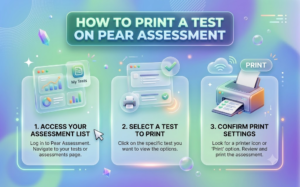
- How to Print a Test on Pear Assessment: A Complete Teacher’s Guide
Integration and Compatibility
A critical practical concern for any school considering a new platform is how it fits into the existing technology stack. Pear assessment has been engineered for maximum compatibility.
It integrates seamlessly with platforms like Google, MS365, Clever, and various LMS. It supports grade syncing and easy sharing of assignments with existing classroom technology.
Specific integrations include:
- Google Classroom — roster sync, assignment creation, and grade passback
- Canvas — full LMS integration with single sign-on and grade sync
- Schoology — seamless rostering and assignment workflow
- Clever — automatic account provisioning and single sign-on
- Microsoft 365 — sign-in and classroom management support
- GoGuardian — integration with the broader student safety and productivity suite
- Desmos Calculator — embedded directly into assessment interface for mathematics
For a smoother digital experience, Pear Assessment integrates with a variety of platforms including Google Classroom, Google Docs, Microsoft Office 365, and Canvas.
Single sign-on support across all these platforms means students never need to remember a separate username and password, reducing login friction that can eat into instructional time — particularly with younger grade levels.
Free vs. Premium vs. Enterprise Tiers
Understanding what is available at each access tier is essential for planning.
Free Tier — available to all teachers without cost or institutional commitment. Includes access to the full question authoring tool, the public item bank, standards tagging, real-time classroom reporting, and basic assignment management. This free tier is genuinely functional, not a limited demo, making pear assessment accessible to underfunded schools and individual teachers who lack budget for ed-tech subscriptions.
Teacher Premium — adds advanced reporting features, including sub-group analysis, deeper standards trend data, the ability to print reports for parent-teacher conferences, and collaboration features for co-authoring assessments with colleagues.
Enterprise / District Tier — unlocks the Data Studio, advanced security features, audio response question types, Microsoft Immersive Reader integration, district-wide administration dashboards, network-managed assessment capabilities, and dedicated implementation support.
Additional features included in Pear Assessment Premium include the ability to shuffle question order, the option to show scores but hide answers from students, read-aloud text-to-speech capability that can be set for an entire class or individual students, assessment draft collaboration for joint editing within a district, calculator options including basic and scientific calculators, and the ability to add a co-instructor for each class.
The tiered model ensures that even resource-constrained schools can access meaningful assessment data for free, while districts that want centralized, multi-source analytics can invest in the enterprise tier accordingly.
How Students Join Pear Deck Sessions
1
Open the join page
Go to joinpd.com in your web browser
2
Enter the session code
Type the 5-letter code your teacher shared
3
Wait for the teacher
The session will start when your teacher begins
4
Answer questions live
Respond to interactive slides as they appear
Setting Up Your First Assessment: A Practical Walkthrough
Step 1 — Create Your Account and Classroom
When setting up a class, you can sync your existing Google Classroom via the Manage Students tab, manually add students to create a class, or ask students to join your classroom by giving them a classroom code. You can group students by class or create custom groups with students from multiple classrooms.
Step 2 — Build or Browse
Teachers have two routes to their first assessment. The first is to search the pre-built library, filtering by subject, grade level, and standard. The second is to author a custom assessment from scratch using the item builder.
Why take the time to create your own bespoke assessments and then laboriously tie them to Common Core Standards, when Pear Assessment gives you the tools to make that much easier? There are reasons, of course, but the platform has a bank of questions and assessments that you can search through and filter based upon the needs of your classroom.
Step 3 — Configure Assignment Settings
Before assigning, teachers set parameters: open and close dates, time limits, whether students can see correct answers after submission, whether question order is shuffled, and whether secure testing mode is required.
Step 4 — Assign to Students
Assignments are pushed to students instantly through the integrated classroom system. Students receive them in their dashboard and can begin immediately from any device.
Step 5 — Monitor and Act
The Live Class Board opens automatically when students begin working. As responses populate, teachers identify confusion in real time and adjust instruction accordingly. After the assessment closes, the full reporting suite becomes available for deeper analysis.
Pear Assessment in the Context of the Broader Assessment Ecosystem
It is worth situating pear assessment within the broader landscape of K–12 assessment to appreciate its positioning.
Formative Assessment refers to ongoing, low-stakes evaluation during instruction — exit tickets, quick checks, daily quizzes. These assessments inform tomorrow’s lesson plan. Pear assessment handles these effortlessly through its free tier, making daily formative assessment practical even for teachers who lack support staff.
Summative Assessment refers to end-of-unit or end-of-course testing that evaluates accumulated learning. The platform’s secure testing features, large item banks, and detailed reporting make it equally capable here.
Benchmark Assessment refers to standardized testing administered at regular intervals — typically three or four times per year — to track progress toward end-of-year goals. Unlike most other tools, pear assessment is designed to serve as a common benchmark system and teacher formative assessment tool in one. School and district leaders can give secure assessments to track progress while teachers find it easy to spot problem areas and act immediately to fix them.
Diagnostic Assessment evaluates where students are at the start of a unit or school year, informing initial instructional groupings and differentiation plans. The same question bank and reporting infrastructure supports these beginning-of-year diagnostic cycles.
This versatility across all four assessment types — formative, summative, benchmark, and diagnostic — in a single platform eliminates the need for schools to maintain four separate tools, reducing both cost and the cognitive burden on teachers who would otherwise need to switch between systems.
How Pear Assessment Supports Differentiated Instruction
Modern pedagogical theory emphasizes that effective teaching must respond to the diverse learning profiles present in every classroom. Assessment tools that surface only average performance mask the differentiation work that teachers need to do.
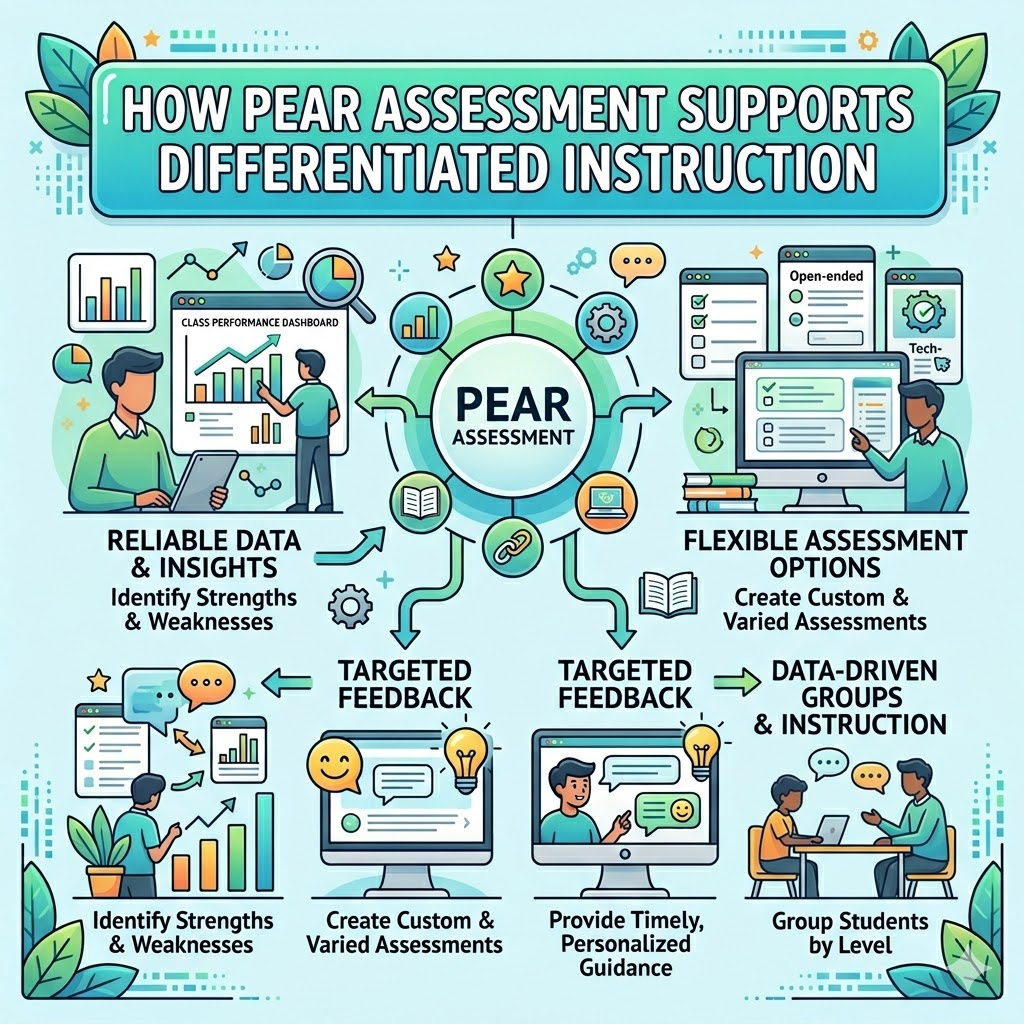
Immediately available results show which students are mastering the standards, which standards need to be retaught, and how groups compare across classes or schools. This level of granularity enables teachers to form targeted small groups — those who need reteaching, those who are approaching mastery, and those who are ready for extension challenges.
The accommodation features built into the platform further support differentiated access to assessment. New features have augmented accommodations capabilities to support all learners, introducing audio response question type that allows students to vocally respond to questions and featuring a Microsoft Immersive Reader integration. Teachers can enable the read-aloud feature for individual students with reading disabilities without removing it for the rest of the class — a simple but powerful accessibility tool.
Calculator choice is another example of differentiated assessment design. Teachers can now offer students a choice of which calculator they want to use on assessments, including options for a basic, scientific, and Desmos calculator. This allows teachers to match calculator access to individual student IEP or 504 accommodations without creating separate assessment versions.
The Role of Pear Assessment in MTSS Frameworks
Multi-Tiered System of Supports (MTSS) is a structured framework for identifying students who need additional academic or behavioral support and delivering interventions in a timely, evidence-based way. Effective MTSS implementation depends on a steady stream of reliable data — which is exactly where the platform excels.
Pear assessment’s data studio gives educators the ability to see reporting alongside external academic and non-academic data sources to inform MTSS planning at the district, school, and student level, providing insight into attendance data, academic performance, standards mastery, and academic risk levels — all in one convenient dashboard.
The Whole Learner Report enables MTSS teams to move from reactive crisis response to proactive risk identification. When attendance decline, academic risk level increase, and standards mastery stagnation appear together on the same student dashboard, the case for early intervention becomes clear and compelling. Without an integrated data view, these signals often exist in three separate systems and the pattern goes unnoticed until the student is in serious academic jeopardy.
How Edulastic Assignments Work
Log in
Sign in with your school account credentials
Open the assignment
Find and click on your assigned test
Answer each question
Complete all questions
carefully
Submit and check score
Submit your work and review your results
Teacher Voices: How Educators Are Using the Platform
Real classroom experiences reveal the practical value of the tool in ways that product descriptions cannot.
One fifth-grade teacher of science, social studies, and math noted that weekly assessments and daily exit tickets through the platform prepare students for state testing because they become comfortable with the format.
A technology coach for grades 5–8 shared that the platform’s data-driven capabilities encourage students to review their performance on assessments, identify areas of weakness, and revisit corresponding instructional materials, helping students become owners of their own learning.
These firsthand accounts reflect two recurring themes in educator feedback: time savings through automation and the motivational effect on students when they can see their own progress data clearly.
Limitations and Considerations
Honest evaluation requires acknowledging areas where the platform presents challenges.
Internet Dependency — pear assessment is entirely cloud-based. Schools in areas with unreliable connectivity or limited device-to-student ratios may face logistical challenges, particularly during large-scale benchmark testing cycles.
Question Quality Variability — the community-contributed portion of the item bank is vast but not uniformly high quality. Reviewers report finding questions tagged to the wrong standard, awkward phrasing, and duplicated content. The platform lets teachers flag bad questions, but the quality filter is mostly community-driven. Teachers should vet questions carefully before using them on high-stakes assessments.
Security Requires Active Configuration — as noted earlier, the platform’s security tools are effective only when deliberately enabled. Schools should train teachers on which settings to activate for each assessment type.
Learning Curve for Data Studio — teachers need training in how to interpret reports properly. The Data Studio is powerful, but deriving actionable insight from it requires professional development investment, particularly for educators who are new to data-driven instruction practices.
Comparing Pear Assessment to Alternative Platforms
| Feature | Pear Assessment | Google Forms | Kahoot | Formative |
|---|---|---|---|---|
| Standards Alignment | Deep (all subjects) | Manual tagging only | None | Moderate |
| Free Tier | Full-featured | Yes | Limited | Yes |
| Technology-Enhanced Items | 50+ types | Basic only | Multiple choice | Moderate |
| Real-Time Monitoring | Live Class Board | Limited | Live leaderboard | Yes |
| Benchmark Assessment | Yes | No | No | Limited |
| LMS Integration | Broad | Google only | Limited | Moderate |
| AI Question Generation | Yes | No | Limited | Limited |
| Data Studio / MTSS | Yes (enterprise) | No | No | No |
| Secure Testing | Full kiosk mode | No | No | Limited |
This comparison illustrates why pear assessment occupies a unique position in the market: it is the only free-to-use platform that simultaneously handles classroom formatives, secure benchmark testing, and district-level data integration.
Best Practices for Maximizing Results
Getting the most out of the platform requires thoughtful implementation, not just technical setup.
Align Assessments to Instructional Cycles — the most powerful use of assessment data is when it directly informs the next day’s instruction. Build assessment schedules that allow time between administering a test and the next instructional block for data review.
Use Question Shuffling for All Summatives — even in low-stakes settings, normalizing question shuffling reduces the likelihood that students share answers and ensures data reflects individual mastery rather than collaborative performance.
Build a Shared District Item Bank Intentionally — invest time tagging questions carefully and encourage teachers to contribute high-quality items they have written. Over several years, this institutional item bank becomes an invaluable resource aligned to local curriculum pacing guides.
Train Teachers to Interpret Reports Before Launching — the best reporting tools in the world create no value if teachers do not know how to read them. Professional development sessions focused specifically on data interpretation yield compounding returns.
Set Clear Student-Facing Data Routines — when students regularly see their own performance data and understand what it means, they become owners of their learning journey and begin to identify areas of weakness independently.
Frequently Asked Questions
Is pear assessment free to use?
Yes. The free tier is fully functional and available to all teachers without a time limit or institutional commitment. It includes the full question authoring tool, access to the certified item bank, standards tagging, real-time reporting, and Google Classroom integration. Premium and Enterprise tiers add advanced reporting, accommodation features, and the Data Studio.
What happened to Edulastic?
Edulastic was rebranded as pear assessment when it joined the Pear Deck Learning platform. The core functionality remained the same; the rebrand reflected the platform’s integration into a larger instructional ecosystem. All existing Edulastic accounts transitioned to the new branding.
Can pear assessment be used for state test preparation?
Yes. The platform provides access to state-released practice tests with standards-aligned reporting for assessments from PARCC, Smarter Balanced, AIR, PSSA, MAAP, NC EOG, STAAR, ISTEP, and many more. Students complete these practice assessments in the same technology-enhanced format used on actual state exams, building both content knowledge and test-taking familiarity.
How does pear assessment handle cheating prevention?
The platform offers kiosk mode and Safe Exam Browser integration to prevent tab switching, dynamic passwords to prevent credential sharing, and question shuffling to reduce the effectiveness of answer sharing. These features must be actively enabled — default settings do not automatically lock down assessments.
What question types does pear assessment support?
The platform supports more than 50 technology-enhanced question types, including multiple choice, drag-and-drop, graphing, hot spot, fill-in-the-blank, essay, audio response, video quiz, equation input, and image labeling, among others.
Does pear assessment integrate with Google Classroom and Canvas?
Yes. The platform integrates with Google Classroom, Canvas, Schoology, Clever, Microsoft 365, and other learning management systems. Single sign-on is supported across all major platforms, and grade passback is available for roster-synced classes.
How is the Data Studio different from standard reporting?
Standard reports show assessment results within the platform. The Data Studio is an enterprise feature that combines those results with external data — attendance, diagnostic assessments, state testing — to create a multi-dimensional student risk and performance dashboard. It is specifically designed to support MTSS team workflows.
Can multiple teachers collaborate on building an assessment?
Yes, with a premium or enterprise account. Assessment draft collaboration allows users to share an assessment draft with others in the district for joint editing purposes. Once a draft is saved, a co-author can be added by entering their email address, provided they also have a premium account.
Is pear assessment suitable for students with disabilities?
The platform includes meaningful accessibility features: read-aloud/text-to-speech for individual students, Microsoft Immersive Reader integration, audio response question type for students who struggle with written expression, and multiple calculator options to match individual accommodation plans.
What grade levels does pear assessment serve?
Pear assessment is designed for K–12 teachers and school and district administrators. Question banks and standards alignment cover elementary, middle, and high school grade bands across mathematics, English language arts, science, and social studies.
Can students access pear assessment from home?
Yes. The platform is fully cloud-based and device-agnostic, meaning students can complete assessments from any internet-connected device — including home computers, tablets, and smartphones. Teachers can control open and close windows so assignments are only available during designated time frames.
How long does it take to set up a class in pear assessment?
Most teachers complete initial classroom setup in under ten minutes. If your school uses Google Classroom, Canvas, or Clever, roster sync is largely automatic. Manual setup requires entering or importing a student list, which typically takes only a few minutes for an average class size.
Can I import my own existing test questions into pear assessment?
Yes. Teachers can upload existing question content and use the built-in authoring tool to convert it into interactive, standards-tagged items. The AI-powered material conversion feature can also automatically transform uploaded documents into assessment-ready questions, saving significant reformatting time.
Does pear assessment support multiple languages?
The platform’s interface and Microsoft Immersive Reader integration offer support for multilingual learners. Teachers can also add translated versions of questions manually within the authoring tool, making it more accessible for English Language Learner populations.
How are open-ended and essay questions graded?
Short-answer and essay responses are flagged for manual teacher review in the gradebook. Premium and Enterprise users can use the AI-assisted rubric feature, which generates suggested scores and feedback based on the rubric criteria, which the teacher then reviews and approves before returning results to students.
Can administrators see individual teacher assessment data?
Yes. School and district administrators have access to aggregate performance reports across classrooms, teachers, and grade levels. However, access levels are configurable, allowing districts to control what data is visible to which roles within the system.
How often is the item bank updated?
The certified item bank is regularly reviewed and expanded by Pear Deck Learning’s content team. State-released items are added as they become publicly available, and community-contributed questions are continuously flagged and reviewed. Teachers can also flag specific questions they believe are inaccurate or misaligned for editorial review.
Does pear assessment work offline?
No. The platform requires a reliable internet connection to administer and complete assessments. Schools in areas with inconsistent connectivity should plan benchmark testing sessions around stable network access and consider downloading any necessary materials in advance where possible.
Can parents or guardians view student results?
Teacher Premium and Enterprise users can generate printable performance reports suitable for parent-teacher conferences. While parents do not have a direct login portal, teachers can share standards mastery reports and individual student performance summaries through their school’s preferred communication channel.
What support and training resources are available?
Pear Deck Learning offers a comprehensive help center, blog tutorials, getting-started video guides, and a professional services team for schools that want structured onboarding. Community forums and advocacy programs connect teachers with experienced platform users for peer-to-peer support and shared best practices.
The Future of Assessment: Where Pear Assessment Is Headed
The direction of the platform’s development aligns with broader trends in educational technology: deeper AI integration, more adaptive learning pathways, and tighter alignment between assessment data and instructional intervention.
The AI-powered question generator and assisted rubric features represent the first wave of a much larger AI integration strategy. Future iterations are likely to include adaptive assessment pathways — where question difficulty adjusts dynamically based on student response patterns — and more automated instructional recommendations driven by assessment data patterns.
Early internal testing data shows that it takes as little as 38 seconds to utilize instant lesson plan generation to generate a lesson plan and at least two differentiated versions of associated assessment assets. As AI capabilities mature, this kind of near-instantaneous content generation will become standard rather than exceptional.
The growing integration between pear assessment and the broader GoGuardian and Pear Deck Learning ecosystem also signals a future where assessment, instruction, classroom management, and student safety operate from a unified, interconnected platform — reducing the fragmentation that currently characterizes most school technology stacks.
Conclusion
Few tools in modern education have managed to serve as many users across as many contexts as effectively as this platform. From the second-grade teacher who needs a five-question exit ticket before the bell rings, to the district curriculum coordinator designing a district-wide benchmark cycle across 40 schools, pear assessment meets the moment without requiring separate tools, separate logins, or separate data systems.
Pear assessment is one of the strongest free assessment tools available to K-12 teachers. It earns its reputation on three things: instant grading, real-time student monitoring, and a generous free tier. The limitations — primarily around security configuration defaults and question quality variability in the community bank — are real but manageable with proper teacher training and clear institutional protocols.
What distinguishes pear assessment from the dozens of competing platforms is not any single feature, but the coherence of its design: every tool, every report, and every question type serves the same purpose — helping teachers know exactly where each student is in their learning, and helping them act on that knowledge before more time is lost. In a world where instructional minutes are precious and learning gaps can widen invisibly without timely data, that purpose-built coherence is genuinely valuable.
For any school or district still relying on paper-based testing, disconnected assessment tools, or manual grade-book analysis, exploring pear assessment — starting with the free tier — represents one of the highest-leverage investments of educator time available in K–12 education today.
Start Learning Smarter Today
Choose a tool and begin your guided journey. Our step-by-step tutorials make mastering online learning tools simple and stress-free.
Latest Posts