Your students are filing in. You need to pull last week’s quiz data and push a follow-up formative before the bell. You go to complete the pear assessment teacher login and hit a spinning wheel, a cryptic error, or the wrong portal entirely. This guide fixes that — permanently. Every method, every error, every role, all in one place.
- Correct URL
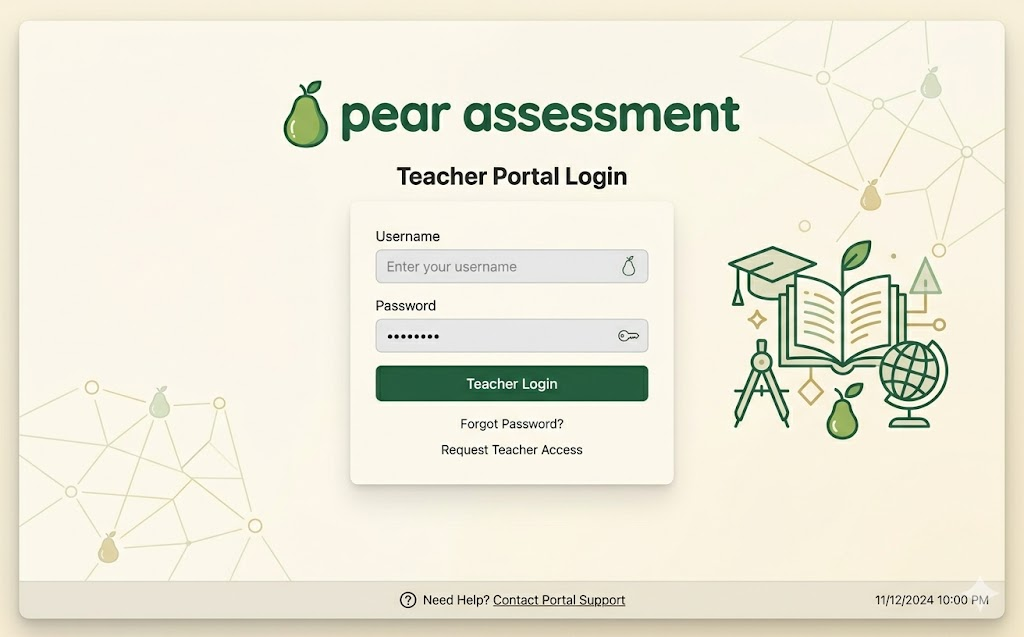
assessment.peardeck.com/login— bookmark it today
- Login methods
- Email, Google SSO, Microsoft SSO, or Clever
- SSO tip
- Verify your method with your IT admin before day one
- Top fix
- Clear browser cache or use Active Directory with Clever
- Free trial
- 14-day Premium trial — no credit card required
- Formerly
- Edulastic — rebranded January 2024 under GoGuardian
What is Pear Assessment — and why are teachers confused about the login?
Pear Assessment is a K–12 formative and summative assessment platform where teachers build quizzes, run live class sessions, and analyze standards-aligned performance data. The pear assessment teacher login confuses many educators because the platform was formerly called Edulastic. In January 2024, GoGuardian rebranded it as Pear Assessment and folded it into the Pear Deck Learning suite alongside Pear Deck, Pear Practice, and Pear Deck Tutor. Teachers who bookmarked app.edulastic.com now get redirected and land on a page they don’t recognize.
One critical distinction: Pear Assessment and Pear Deck are separate products with separate portals. Pear Deck teachers log in at app.peardeck.com/home using only Google or Microsoft. The pear assessment teacher login page at assessment.peardeck.com/login offers more options and leads to a completely different dashboard. Confirming you’re at the right URL eliminates half of all reported login problems before they start.
Bookmark this now: The correct, permanent URL for pear assessment teacher login is assessment.peardeck.com/login. This works for all account types, all districts, and all login methods. Save it today.
Which login method should you use?
Before touching the pear assessment teacher login page, answer two questions: Does your district manage your account? And does your school use Google Workspace or Microsoft 365? Your IT administrator’s answers determine everything. Use this table to find your path in under ten seconds.
| Your situation | Recommended method | Status |
|---|---|---|
| District uses Clever | Clever SSO — start from your district’s Clever portal | Recommended |
| District uses Google Workspace | Continue with Google | Recommended |
| District uses Microsoft 365 | Continue with Microsoft | Recommended |
| Independent / no district IT | School email and password | Universal fallback |
| Substitute or guest teacher | Contact district IT — you need a provisioned account | Needs IT help |
| Carnegie Learning partner school | Log into MyCL first, then click the Pear Assessment button | Separate portal |
Step-by-step pear assessment teacher login — all 4 methods
There are four ways to complete the pear assessment teacher login. Start with the method your IT administrator recommends. When in doubt, Method 1 is the universal fallback that works for every account type.
Method 1 — Universal
School email and password
- Open your browser and go to
assessment.peardeck.com/login. - Enter your school or district email address — for example,
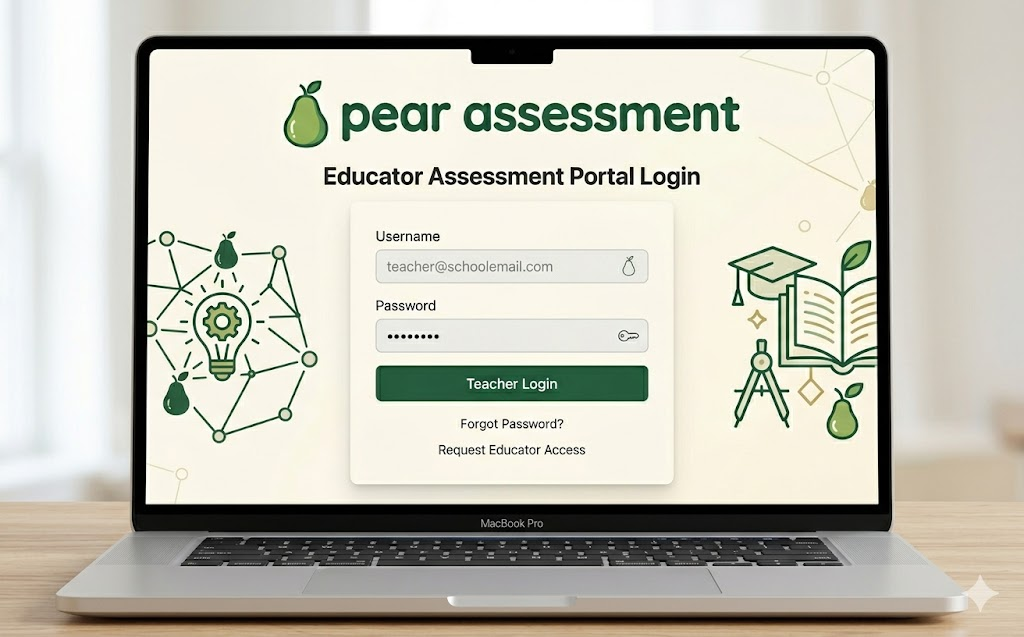
yourname@district.edu. Never use a personal Gmail or Outlook address. - Enter your password and click Sign In.
- If this is your first time, you won’t have a password yet — skip to the First-Time Setup section below.
- Forgot your password? Click “Forgot Password?” and a reset link arrives in your school inbox within minutes. Links expire after 24 hours.
Use Chrome or Edge for the most reliable pear assessment teacher login experience. Safari can cause session issues on some district networks.
Method 2 — Google districts
Sign in with Google
- Go to
assessment.peardeck.com/login. - Click “Continue with Google.”
- Select your school Google account — not a personal Gmail account.
- Grant permissions Pear Assessment requests, typically Google Classroom roster access.
- You land on your teacher dashboard within seconds. No password entry needed.
If you see “This account is not associated with a school,” your district IT needs to provision your Google account in the platform before you can log in.
Method 3 — Microsoft districts
Sign in with Microsoft
- Go to
assessment.peardeck.com/login. - Click “Continue with Microsoft.”
- Enter your school Microsoft 365 credentials — the same ones you use for Outlook or Teams.
- Complete any multi-factor authentication your district requires.
- You are redirected to your Pear Assessment teacher dashboard.
This method integrates with Azure Active Directory. Microsoft Teams schools often have rosters that sync automatically after the first login.
Method 4 — Clever districts
Clever SSO (district-managed)
- Do not start at
assessment.peardeck.com/login. Open your district’s Clever portal instead. - Find the Pear Assessment tile in your Clever app library.
- Click the tile. Your session opens automatically with rosters already synced.
Critical warning: On the Pear Assessment page within Clever, do not click “Log in with Clever.” Click “Log in with Active Directory” instead. Clicking the Clever button directly triggers an “Invalid username or password” error even when your credentials are perfectly correct. This is the single most common pear assessment student login mistake in Clever districts.
New teacher? Complete first-time setup walkthrough
If you have never used Pear Assessment or Edulastic before, you need to create an account before attempting the pear assessment teacher login. Here is the full process from scratch.
- Create your accountGo to
assessment.peardeck.comand click Sign Up. Choose Teacher as your role. Enter your name, school email, school name, and the grade levels you teach. Never use a personal email. - Verify your emailPear Assessment sends a confirmation link to your school inbox. Check spam if it doesn’t arrive within 5 minutes. The link expires in 24 hours — if it does, return to the login page and request a new one via “Forgot Password.”
- Activate your Premium trialOnce inside, click “Try Premium” in the top right. Check the Teacher Premium Trial box and click Proceed. No credit card is required. Your 14-day trial starts immediately.
- Create your first classClick Classes in the left menu, then Create Class. Name it, select subject and grade level, and choose how students join — via Google Classroom sync, Clever, class code, or manual enrollment.
- Connect your rosterFor Google Classroom schools, click “Import from Google Classroom” and select your class. For Clever districts, rosters sync without any action once your IT administrator has connected the integration.
- Find a pre-built assessmentClick Test Library in the left menu. Search by standard code, grade level, or subject. Thousands of aligned assessments are ready to assign or modify — no need to build from scratch on day one.
Complete troubleshooting guide — every pear assessment teacher login error fixed
Most problems with the pear assessment teacher login trace back to four root causes: wrong email address, browser cache conflict, a Clever routing error, or an unverified account. Every common error and its exact fix is listed below.
| Error or symptom | Most likely cause | Exact fix |
|---|---|---|
| “Email address not found” | Personal email used, or no account created | Switch to your school-issued email. If no account exists, create one at assessment.peardeck.com. |
| “Incorrect password” | Password expired or mistyped | Click “Forgot Password?” on the login page. Check school inbox and spam for the reset email. |
| “Invalid username or password” via Clever | Clicked “Log in with Clever” instead of “Active Directory” | Return to your district Clever portal. On the Pear Assessment tile, choose Log in with Active Directory. |
| Endless redirect loop | Browser cookie or cache conflict | Clear cache and cookies, then retry. If it persists, open an incognito window and log in from there. |
| “Account not verified” | Confirmation email was never clicked | Return to the login page and request a new verification email. Check spam. |
| Two accounts in conflict | Personal and school email both used to register | Contact Pear Assessment support at support.peardeck.com to merge accounts. |
| Wrong classes visible after login | Logged in with personal email instead of school email | Log out, log back in with district email. Your district account holds all class data. |
| Mobile login fails or loops | Safari on iOS blocks third-party cookies | Use Chrome or Firefox on mobile. Or disable “Prevent Cross-Site Tracking” in iOS Safari settings. |
| Locked out on exam day | IT-managed SSO credential or expired session token | Call district IT immediately. Ask a colleague to launch the assessment as a temporary measure. |
| Features disappeared after trial | 14-day Premium trial ended | Contact your district administrator for a Premium or Enterprise license. |
Know when to call IT vs. Pear Support: Contact your district IT first for SSO, Clever, Active Directory, or Microsoft/Google integration issues — these are controlled at the district level. Contact Pear Assessment support at support.peardeck.com for account merges, billing questions, missing features, or platform bugs.
Login by role — not every teacher has the same access
Pear Assessment assigns different permissions to different users. Understanding your role before attempting the pear assessment teacher login helps you know what you will see — and what you cannot do — from day one.
Solo classroom teacher
Full access to create, assign, and grade assessments for your own classes. The default role for most teachers.
Co-teacher
Added to someone else’s class. Same dashboard view, same student data. Cannot edit class settings. Login is identical — access level is set by the primary teacher.
Department head
Can access assessments across multiple teachers’ classes. Requires an elevated role assigned by the school admin before your first login.
District administrator
Logs in at the same URL but sees a different admin portal with district-wide data and user management controls.
Substitute teacher
No personal account by default. The primary teacher must add the sub as a co-teacher before the class period, granting temporary access through the sub’s own credentials.
Free vs. Premium vs. Enterprise — what changes after pear assessment teacher login
Your account plan determines what you see on the dashboard after every pear assessment teacher login. Here is what each tier unlocks so you know whether a missing feature is a settings issue or a plan limitation.
Free
$0
- Unlimited assessments
- Test library access
- Live Class Board
- Basic reports
- AI question generation
- Adaptive testing
Most popular
Teacher Premium
Paid
- Everything in Free
- AI question creation
- Adaptive assessments
- Advanced reports
- Import from PDF, DOCX, Forms
- 14-day free trial, no card
Enterprise
District
- Everything in Premium
- District admin portal
- OneRoster / SIS sync
- Kiosk / secure testing mode
- Dedicated account management
What to do in your first 10 minutes after pear assessment teacher login
Getting through the pear assessment teacher login is step one. Here is the complete first-session workflow no other guide covers — what to do in your first 10 minutes to actually run an effective class.
- Orient yourself in the 2025 dashboardThere is a toggle in the top right to switch between the redesigned view and the legacy view. The left sidebar is your main navigation: Tests, Assignments, Classes, and Reports.
- Sync your rosterGo to Classes, select your class, and click Sync Roster. Any students who joined or left since your last login are updated. Takes about 30 seconds.
- Find or build a testClick Test Library and search by standard code, grade level, or subject. Premium users can click “Create with AI” to generate a full 10-question quiz from a standard in under 60 seconds.
- Assign in two clicks using Easy AssignOpen any test, click Assign, select your class, set the date range, and click Assign. Students see it on their dashboard immediately.
- Launch the Live Class BoardOpen your active assignment and click Live Class Board. See real-time responses, identify who is stuck, and pause the assessment or give hints to specific students without disrupting the whole class.
- Pull a performance reportAfter students submit, click Reports in the left sidebar and select the assignment. A breakdown by student, by question, and by standard shows you exactly which skills need reteaching. Export to PDF in one click.
District-specific pear assessment teacher login scenarios
Login behavior varies depending on how your district has configured the platform. Here is what to expect in the five most common setups, so your pear assessment teacher login goes smoothly regardless of your school’s technology environment.
Google Workspace districts
Teachers log in with their @district.edu Google account. After login, Google Classroom rosters sync automatically. If login fails, your district Google admin may need to whitelist the Pear Assessment OAuth app in the Google Admin Console. Send your IT admin the app ID from the Pear Assessment Help Center.
Microsoft 365 districts
Login uses Azure Active Directory. Multi-factor authentication prompts are normal and expected. If your MFA device has changed, reset it with your district IT before attempting login — Pear Assessment cannot bypass Microsoft’s authentication layer on your behalf.
Clever districts
Never attempt the pear assessment teacher login at assessment.peardeck.com/login directly if your district uses Clever. Always start at your district’s Clever portal. The Pear Assessment tile handles the authentication handoff, and roster sync happens automatically every night.
OneRoster districts (Enterprise only)
Roster sync happens automatically through the district SIS. Teachers never need to manually create or update classes — students appear when they enroll in the SIS. Auto-Assign features can push new assessments to newly formed classes without any teacher action.
Carnegie Learning partner schools
If your school uses Carnegie Learning’s Math Solution, access Pear Assessment through your MyCL account. Log into MyCL first, then click the Pear Assessment button. This pre-authenticates your credentials. Do not create a separate Pear Assessment account — it will not connect to your Carnegie Learning data.
Frequently asked questions
What is the correct URL for pear assessment teacher login?
The correct URL is assessment.peardeck.com/login — bookmark it now. If your district uses Clever, start from your district Clever portal instead of this URL directly.
Is the Edulastic login the same as the pear assessment teacher login?
Yes. Edulastic was rebranded as Pear Assessment in January 2024. Your existing Edulastic credentials, classes, and test history all carried over automatically. The old app.edulastic.com URL now redirects to the Pear Assessment login page.
Can I complete the pear assessment teacher login on a phone or tablet?
Yes — use Chrome or Firefox on mobile, not Safari. Safari’s cross-site tracking prevention can interfere with SSO logins. Mobile works well for monitoring Live Class Board and reviewing reports; building assessments is easier on desktop.
Why does pear assessment teacher login keep logging me out?
Session timeouts are usually caused by incognito mode or aggressive cookie-clearing browser extensions. Use a standard browser window with cookies allowed for assessment.peardeck.com to maintain persistent sessions.
Why am I getting “Invalid username or password” during pear assessment teacher login via Clever?
You clicked “Log in with Clever” instead of “Log in with Active Directory.” Return to your district Clever portal, find the Pear Assessment tile, and choose the Active Directory option. This is the most common Clever login error.
Can two teachers share one account for pear assessment teacher login?
No. Account sharing violates Pear Assessment’s terms of service and creates data integrity problems. If a colleague needs class access, add them as a co-teacher from your Class Settings — they use their own login credentials.
What happened to my Edulastic data after the pear assessment teacher login rebrand?
All Edulastic accounts were automatically migrated. Log in with your existing Edulastic email and password and you will see your full test library, class history, and student data intact. If anything is missing, contact support.peardeck.com.
What is the difference between the Pear Deck and pear assessment teacher login portals?
They are separate products with separate portals. Pear Deck is at app.peardeck.com and accepts only Google or Microsoft login. Pear Assessment is at assessment.peardeck.com/login and also accepts Clever and email and password.
How do I add a co-teacher after completing pear assessment teacher login?
Go to your Class, click the three-dot menu, and select Manage Co-Teachers. Enter the co-teacher’s school email. They receive an invitation and access the class using their own login credentials.
Do I need a credit card to start the Premium trial from the pear assessment teacher login dashboard?
No. The 14-day Teacher Premium trial requires no payment information. Once logged in, click Try Premium in the top right, check the trial box, and click Proceed. The trial cannot be extended for individual teachers.
My password reset email is not arriving after the pear assessment teacher login page sent it — what do I do?
Check your spam or junk folder first. If it’s not there, ask your IT department to whitelist the domain @peardeck.com. As a last resort, contact Pear Assessment support to manually reset your account.
Can I use pear assessment teacher login if I am not part of a district?
Yes. Independent and homeschool teachers can create a free account using any school email. You won’t have Clever or SIS roster sync, but you can manually create classes and enroll students via class code.
Conclusion
The pear assessment teacher login should never be the hardest part of your teaching day. Bookmark assessment.peardeck.com/login right now. Use your district’s preferred method — Clever, Google, Microsoft, or school email — and stay consistent. If something breaks, 90% of pear assessment teacher login errors come down to three things: wrong email address, a browser cache conflict, or clicking the wrong Clever button. All three are fixed in under two minutes using the troubleshooting table in this guide.
Once you are inside, don’t stop at the dashboard. Sync your roster, grab a standards-aligned test from the library, and launch your first Live Class Board session. Whether you’re a first-year teacher setting up for the first time, a veteran navigating the Edulastic-to-Pear transition, or a district coordinator managing access across dozens of classrooms — a clean, consistent pear assessment teacher login opens everything the platform has to offer. Now log in and teach.
Your 30-second recap
Bookmark
assessment.peardeck.com/login. Use the method your district assigned — Clever, Google, Microsoft, or email.Hit an error? Clear your browser cache, use Active Directory with Clever, and make sure you’re using your school email — not a personal one.
After login: sync your roster, assign a test, and open the Live Class Board. Your students will have real-time feedback before the period ends.